


This guide details the step-by-step process for setting up the environment to run a Nillion verifier on Mac OS. If you’re using Linux or Windows, please refer to the Nillion verifier setup page for specific instructions.
Setting up a Nillion verifier on Mac OS is straightforward and will have you contributing to the Nillion network in no time. Let’s dive into the process.
1. Connecting Your Keplr Wallet
Before you can start setting up your verifier, you’ll need to connect your Keplr wallet to the Nillion verifier portal.
Step 1: Navigate to the Nillion verifier portal.
Step 2: If you don’t already have a Keplr wallet, follow this guide to create one and connect it to the Nillion Testnet.
Step 3: Ensure your Keplr wallet has some NIL tokens. You can obtain NIL tokens from the Nillion Faucet.

Step 4: On the portal home page, click “Verifier”

Step 5: On the next select the device you’re using.

Once your wallet is connected, funded, and your device is selected, you’re ready to proceed with the installation.
2. Installing Docker
Nillion’s verifier runs within a Docker container, to download Docker please follow the steps below:
Step 1: Install Docker by following the appropriate instructions for your device. You can find the Docker installation guide here.

Step 2: After installing Docker, verify the installation by running the following command in your terminal:
docker --version
You should see an output similar to:
Docker version 27.1.1, build 63125853e3
Step 3: Further verify by running a simple Docker container:
docker container run --rm hello-world
If Docker is installed correctly, this command will print:
Hello from Docker!
3. Getting the Verifier Image
Now that Docker is up and running, it’s time to pull the Nillion verifier image from Docker Hub.
Step 1: Pull the Nillion verifier image by running:
docker pull nillion/retailtoken-accuser:v1.0.04. Initializing the Verifier
Let’s initialize the verifier to get it ready for operation.
Step 1: Create a directory on your local machine to store the verifier’s state:
mkdir -p nillion/accuser
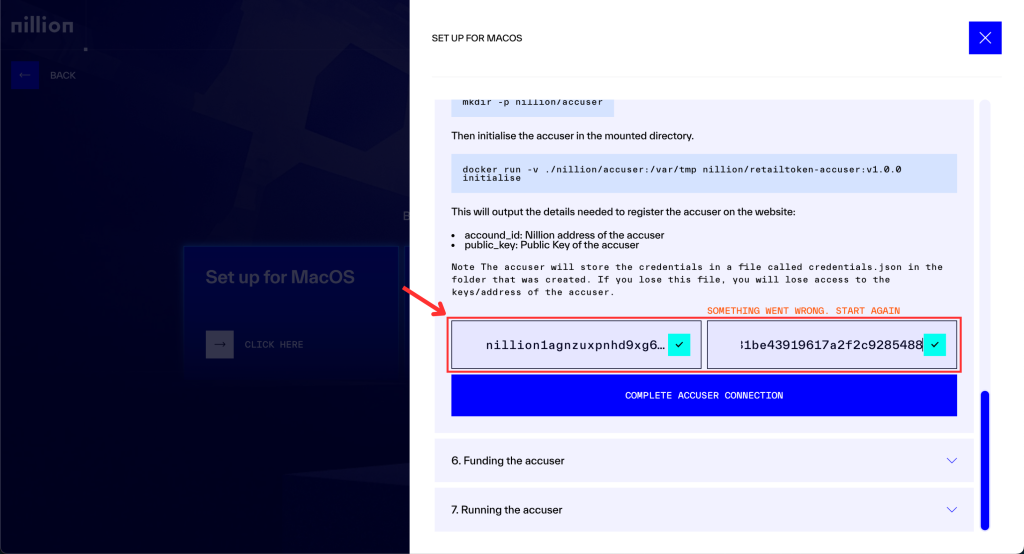
Step 2: Initialize the verifier in the directory you just created:
docker run -v ./nillion/accuser:/var/tmp nillion/retailtoken-accuser:v1.0.0 initialise
This command will generate critical information, including your account_id and public_key, which you’ll need to register your verifier on the Nillion portal.
Important: The verifier will store these credentials in a file named credentials.json. Do not lose this file—it contains your verifier’s keys and address.
5. Funding the Verifier
To perform its operations, your verifier will need NIL tokens.
Step 1: Fund your verifier using the Nillion faucet.
Be sure to use the Nillion address generated during the initialization step, not your Keplr wallet address.

6. Running the Verifier
You must wait 30-60 minutes to continue with the steps below. The secret verification is designed wait for a period of time before fully registering the accuser.
With everything set up, it’s time to start your verifier.
Step 1: Run the verifier in the same directory where the credentials are stored:
docker run -v ./nillion/accuser:/var/tmp nillion/retailtoken-accuser:v1.0.0 --rpc-endpoint "<http://51.89.195.146:26657>" --block-start 4670666
Your verifier will now begin listening to events from the Nilchain. Once a registration event is posted to the chain, the verifier will automatically start accusing.
And that’s it! You’ve successfully set up a Nillion verifier on your Mac OS device. Whether you’re participating in the Nillion network for development, testing, or simply exploring, your verifier is now operational.
For users on Linux or Windows, be sure to visit the Nillion verifier setup page for instructions tailored to your operating system.
Ready to dive in? Become a Nillion verifier today or check out the resources below for additional assistance: